
User groups allow you to organize users in your Company Training Academy into custom groups, such as IT, HR, Management, or regional teams.
Using user groups makes it easier to manage users and assign training programs to multiple users at once. Once groups are created, you can add users to them on the Add users page and assign specific trainings to each group during the training setup process.
Accessing User Groups
To access User groups, do the following:
- Log in to your Company Training Academy.
- Navigate to User groups in the left-hand menu
Creating a user group
To create a new user group, do the following:
- Open the User groups section.
- Enter the name of your group.
- Click the Add Group button.
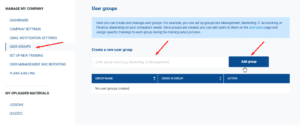
After the group is created, it will appear in the User groups list.
Adding users to a group
To add users to a group, click the option to add users, as shown below.
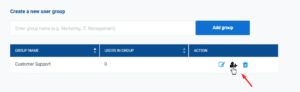
You will then see the option to add users individually or add multiple users at once.
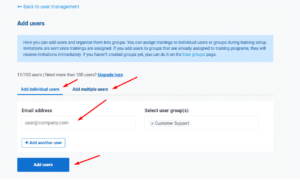
In both cases, you will need to enter an existing user email or a new user email and click the option to Add Users.
Users can belong to multiple groups if needed.
Managing the group and its users
From the Manage group section, you can manage both the group settings and its users.
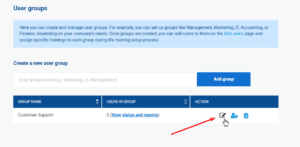
Here, you can:
- update the group name,
- remove users from the group,
- send invitation reminders to users who have not yet registered,
- view user statuses and invitation information.
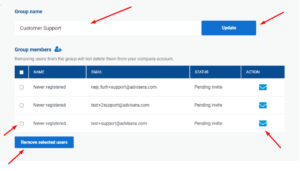
Removing a user from the group does not delete the user from your Company Training Academy account.
Assigning training to user groups
During the training setup process, you can assign training programs to one or more user groups.
When a group is selected, all users within that group will automatically be assigned to the selected training program.
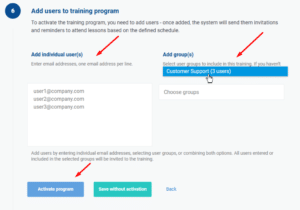
To learn more about creating and assigning training programs, read the Set up new training article.