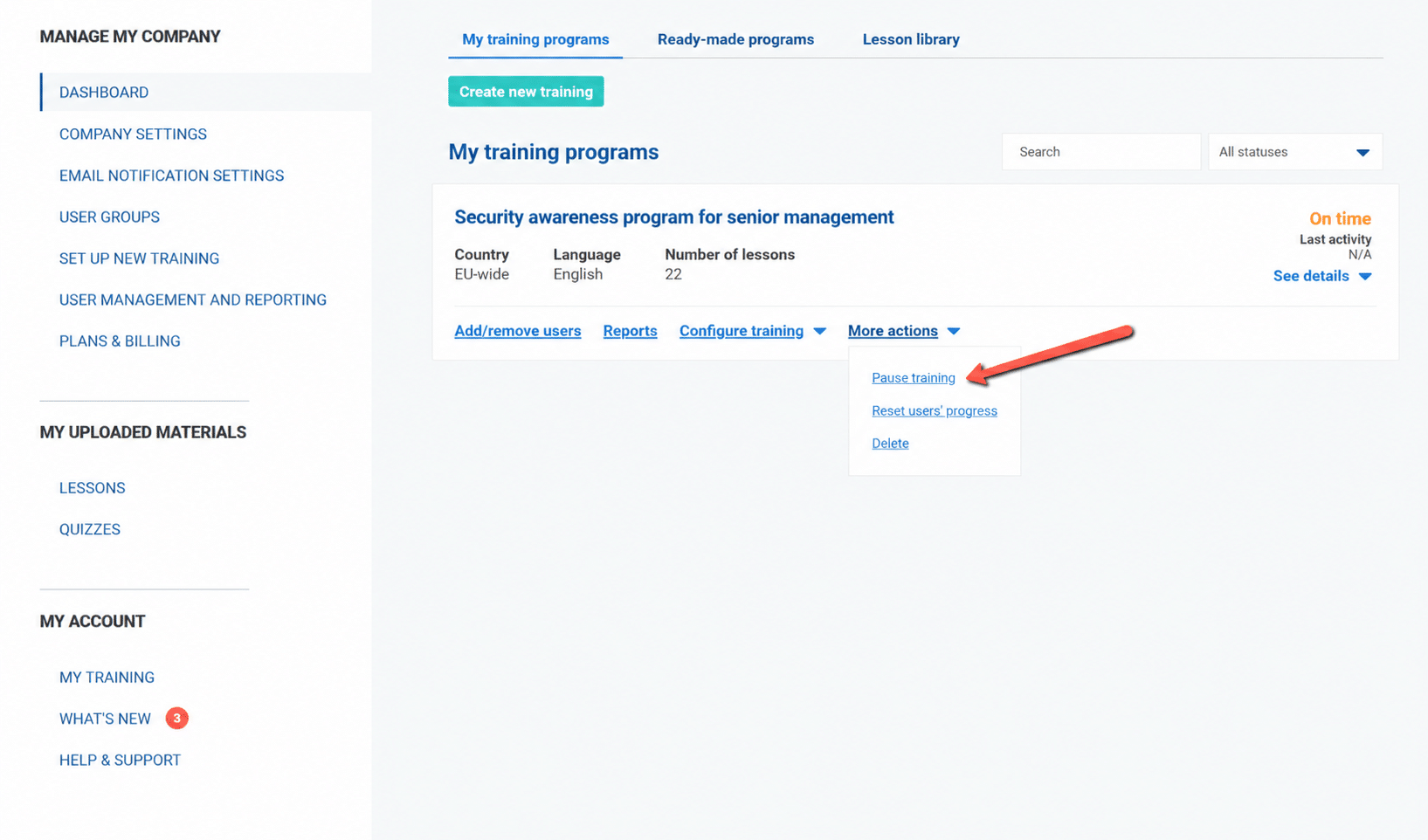
In the Set up new training section, you can configure training programs for your employees, set the frequency of lessons, assign users or user groups, and configure quizzes and testing. You can create multiple training programs depending on your company’s needs.
You can start setting up a new training program in the following ways:
- click the Create new training option from the Dashboard,
- select a training program from the Ready-made Programs section,
- or navigate to Set up new training from the left-hand menu.
The training setup process is completed through several steps, which are explained in detail in the continuation of this article.
Choosing how to create a training program
You can create a training program in two ways:
- by selecting a program from the Ready-made Programs section,
- or by setting up the training program manually from scratch.
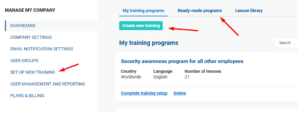
Ready-made Programs
Ready-made Programs contain preconfigured lesson selections based on the selected framework and employee group, such as IT staff or general employees.
After selecting a ready-made program, you can continue customizing the training program, users, lesson frequency, quizzes, and other settings.
You can also use the available filters to browse programs by framework or popularity, or use the search bar to quickly find a specific regulation or topic.
Setting up training from scratch
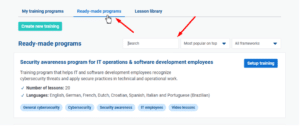
If you choose to create a training program manually, you will first select the framework, country, language, and lessons you want to include in the training program.
Select a standard or regulation
To select a standard or regulation, do the following:
- Select the desired framework of your training from the drop-down menu.
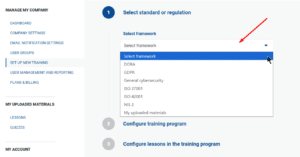
2. Select the desired program from the recommended training programs.
3. Click the Continue button to jump to the next step.
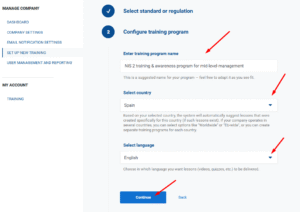
Configure training program
To configure the training program, do the following:
- Enter the training program name.
- Select your country from the drop-down menu.
- Select the language from the drop-down menu.
- Click the Continue button to jump to the next step.

Configure lessons in the training program
In this step, you can rearrange the sequence of the lessons, preview lessons, remove lessons from the training program, or add other lessons from the library:
- To rearrange the sequence of the lessons, click on the 3 dots next to the lesson you wish to move and drop the lesson where you see fit.

- To preview lessons, click the Preview button next to the desired lesson.

- To remove lessons from the training program, click the Remove button next to the desired lesson.

- To add other lessons, click the Add other lessons from the library, find the suitable lesson, and click the Add button next to that lesson.

- Click the Continue button to jump to the next step.


Set the frequency of lessons
In this step you can do the following:
- Set how often the users need to attend the sessions.
- Define the start date of the training program.
- Define repeating cycle of the training program.

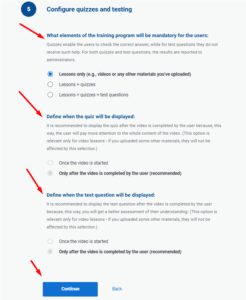
Configure quizzes and testing
In this step, you can do the following:
- Define what elements of the training program will be mandatory for the users.
- Define when the quiz will be displayed.
- Define when the test question will be displayed.
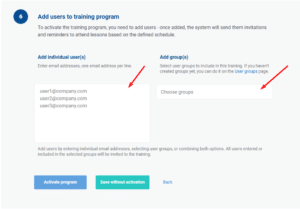
Add users to the training program
In this step, you can assign users or user groups to the training program.
You can:
- add users individually,
- add multiple users at once,
- or assign existing user groups to the training program.
For individual or multiple users, enter the existing user email or a new user email and click the option to Add User(s).
If you assign a user group, all users within that group will automatically be assigned to the training program.
The system will send invitations and training notifications to assigned users according to the training settings you configured.
For instructions on how to create and manage user groups, visit the User groups article.
After adding users or user groups, click the Activate program button to activate the training program.
Remove users from the training program
To remove a user from the training program, do the following:
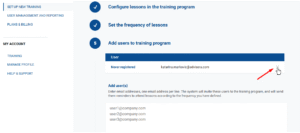
- Go to the main Dashboard, choose the training program you wish to remove users from and click on the option to Add/remove users.
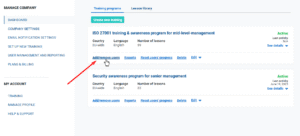
2. You will be taken to the setting up the training section, where you can click the X option on the right-hand side, as shown in the example below and the user will be removed from the training.
Activating the training program
After completing all the steps, click the Activate program button to activate your training program.
If you do not wish to activate your training program immediately, click the Save without activation button.
Once the training program is activated or saved, you will be automatically transferred to a Dashboard where you can see the status of your training programs.

Managing an active training program
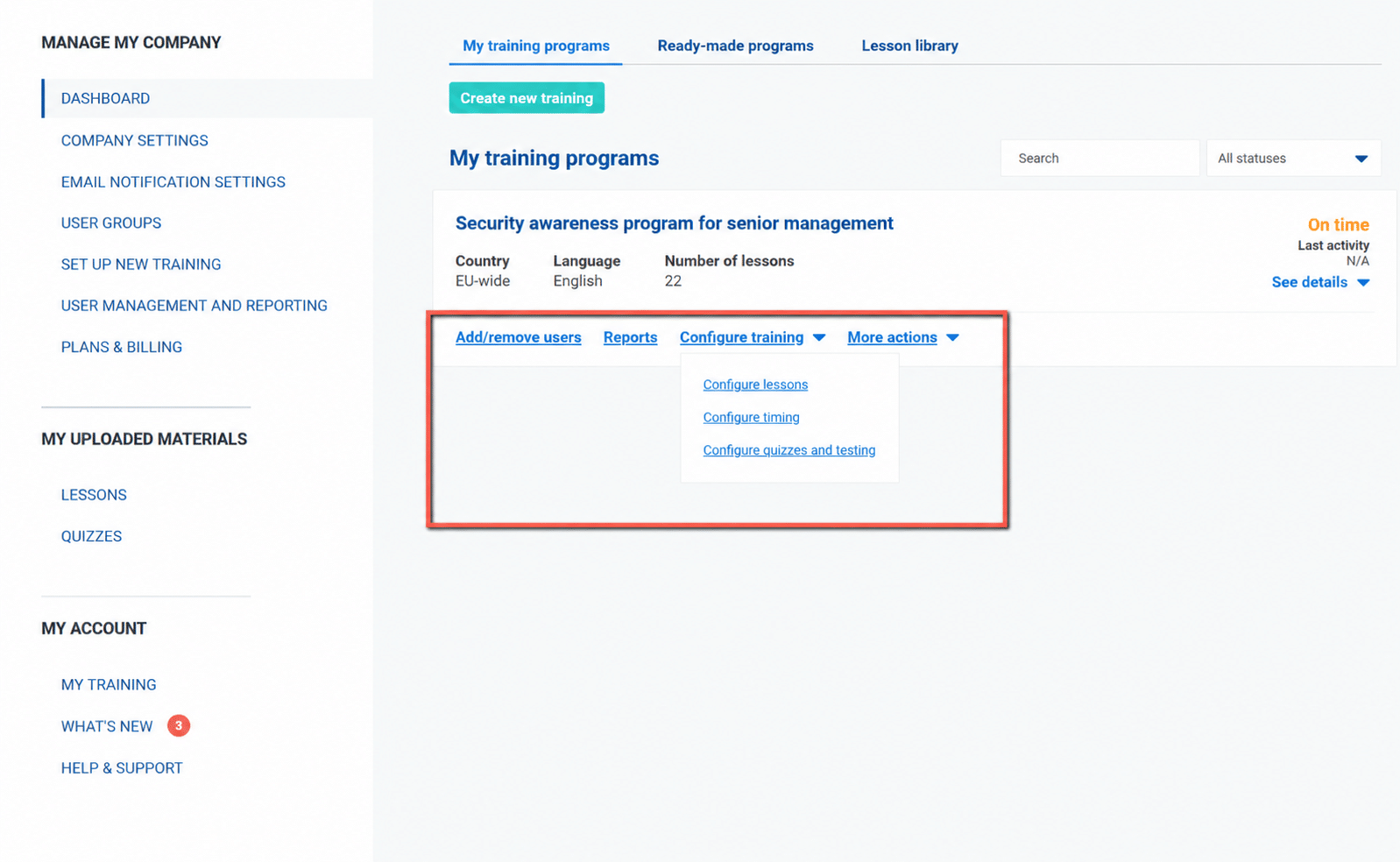
After you activate a training program, you can manage it from the Dashboard.
Configure training
Use the Configure training dropdown to access the training configuration options.
Pause, resume, reset, or delete a training
Open the More actions dropdown to pause, reset, or delete a training. When you pause a training, the system saves all progress and stops reminders about scheduled training. To continue, unpause the training; your progress is saved and everything continues as usual.