
After passing your certification exam, you can add your Advisera course credential to your LinkedIn profile. This allows recruiters and people in your network to see your new qualification, which may support your career development.
You can add your credential in either of the following ways:
- Use the link provided in the email containing your certificate.
- Add the credential manually from your LinkedIn profile.
This article explains both options.
Add your credential using the link in the email
- Open the email containing your certificate. Its subject line is “Advisera / Certification exam results for [course name]”, where [course name] is the name of the course associated with your certification exam
- Click the link in the email for adding your credential to LinkedIn. The link begins with https://www.linkedin.com/profile/add…
- LinkedIn will open a dialog with your credential details already filled in:
 Example only. The information shown will match your certificate.
 - Optionally, add relevant skills and attach a PDF copy of your certificate:

- Click Save.
 Example only. The information shown will match your certificate.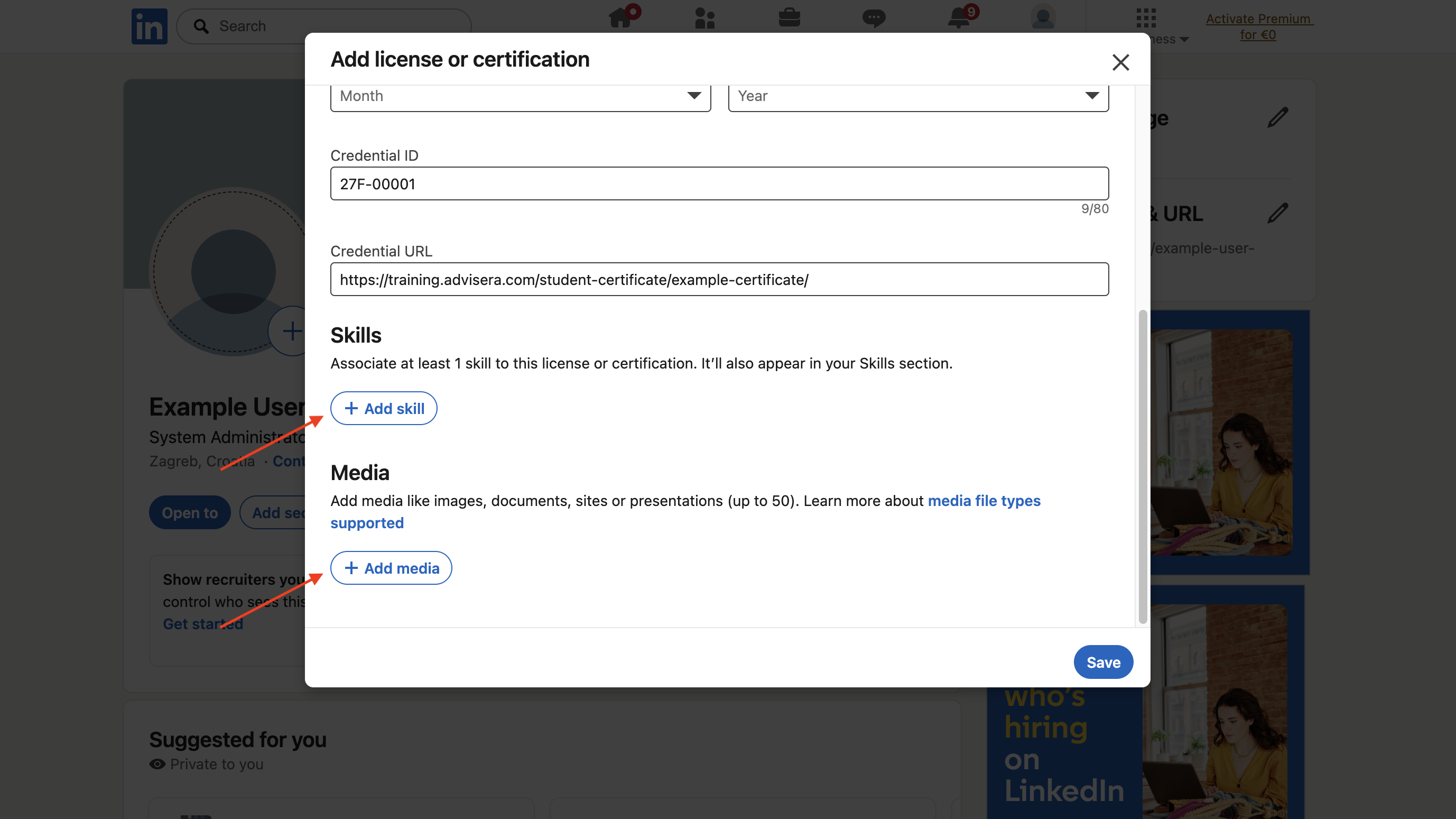
Add your credential manually
If you cannot use the link in the email, you can add your credential manually to your LinkedIn profile:
- Open LinkedIn and select Me → View Profile.
- Click Add section.
- Open Recommended.
- Select Add licenses & certifications.
- Enter the following information:
- Name: The exact title of the course
- Issuing organization: Advisera Expert Solutions Ltd
- Issue date: The month and year in which your certificate was issued
- Expiration date: Select none
- Credential ID: The number at the bottom of your certificate (for example, 27F-00001)
- Credential URL (optional): The public URL of your certificate page
- Skills (optional): Skills demonstrated by earning the credential
- Media (optional): PDF of the certificate
- Click Save.
Note: If you cannot find the public URL of your certificate page, contact us at support@advisera.com, and we will provide it.