

What is the “Write documents” module?
The Write documents module helps you quickly find, customize, and download compliance documents tailored to your organization.
Instead of figuring out:
- which documents you need
- what they should contain
- how to adapt them
Experta guides you through a structured process, from selecting the right document to fully personalizing it.
What problems does it solve?
Many users struggle with:
- Not knowing which documents are required for a standard
- Not understanding which clauses each document covers
- Not knowing the correct sequence of creating documents
- Spending too much time adapting templates manually
This module solves these issues by combining structured navigation + guided personalization.
Which standards are covered by this module?
Currently, in the Write documents module, you will find documents for ISO 27001, NIS2, and DORA.
We are working on adding new standards to this module, including ISO 42001, ISO 9001, ISO 14001, ISO 45001, and others.
How to choose a document?
Step 1: Select a standard and a language
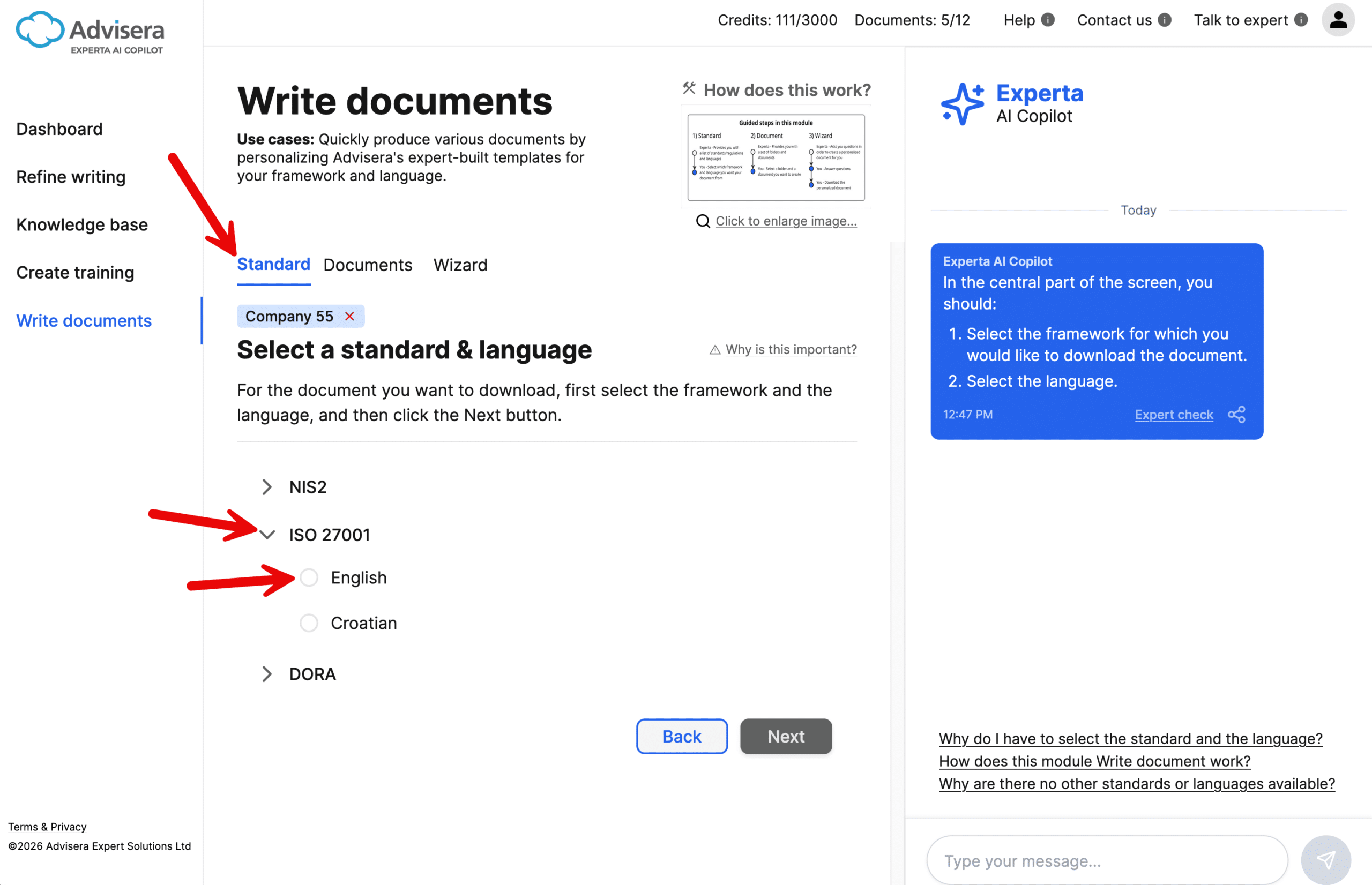
In the screen “Standard”, choose:
- The framework/standard (e.g., ISO 27001)
- The language of the document
👉 This ensures you are working with the correct regulatory and linguistic context.
Note: If you have already purchased a toolkit, these options may be pre-selected.
Step 2: Select a document
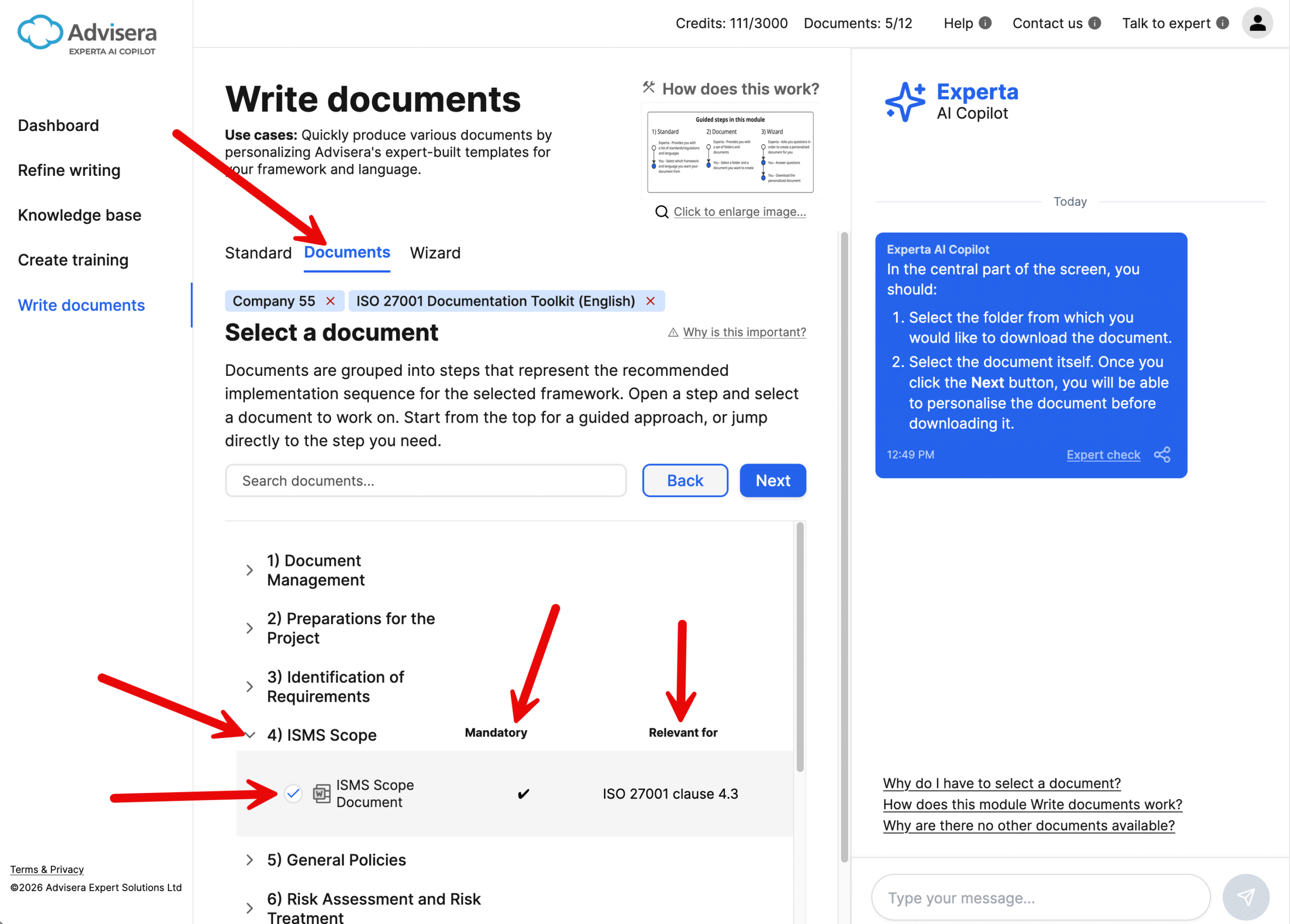
In the screen “Documents”, choose the document you want to create.
You can:
- Browse documents by folders, or type the document name through search
- See which documents are mandatory or optional
- Understand which clauses or articles of the framework are covered by a particular document
👉 The folders are displayed in a sequence that is suggested for optimal implementation steps.
Document availability and access
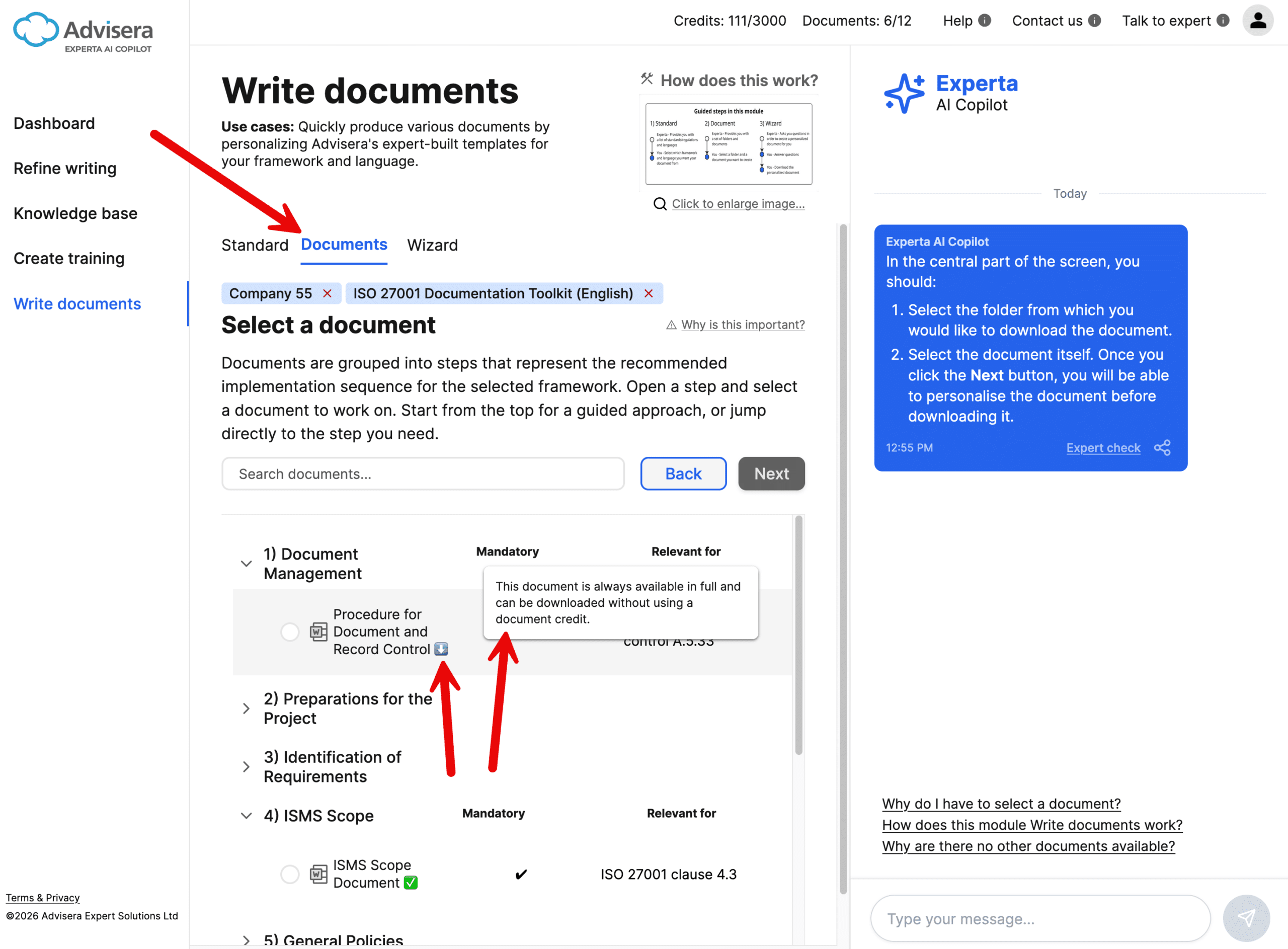
Each document has a specific status:
Full document
- Available if you have document credits
- You can preview it before using a credit
- A credit is used only after you confirm that you want to use the document
Demo document
- Available if you don’t have credits
- Shows structure and example content, but does not show the full document content
- Useful for evaluation
Always available document
- Can be downloaded anytime without using credits
- You can access the full document no matter if you are a paid or a free user
Already downloaded
- This is a document that you downloaded previously, and for which you have spent your document credit
- Such a document can be downloaded again (for the same company) without using credits
Preview before downloading a Full document
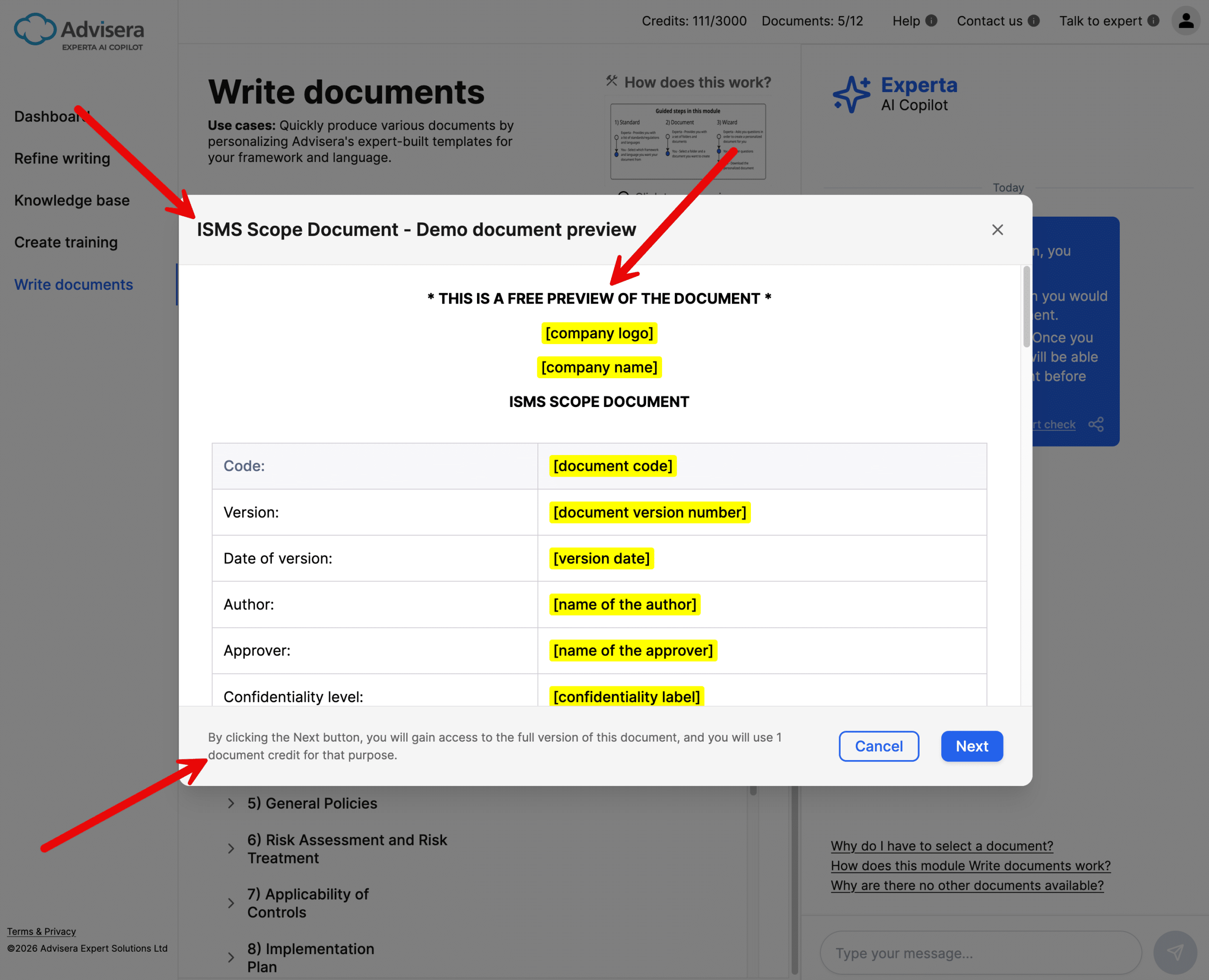
When selecting a “Full document”:
- A preview is shown before download
- You are informed if a credit will be used
- You decide whether to proceed
👉 This ensures full control over your document credits.
How to personalize a document using the document wizard?
What is the Document wizard?
The Document wizard helps you adapt a template to your organization by guiding you through a series of questions.
Instead of editing a document manually, you:
- Answer structured questions
- Experta uses those answers to insert relevant information into the document
- Generate a fully personalized document
- Download it to your local disk where you can edit it further
How the wizard works
Step 1: Answer questions in the Chat sidebar
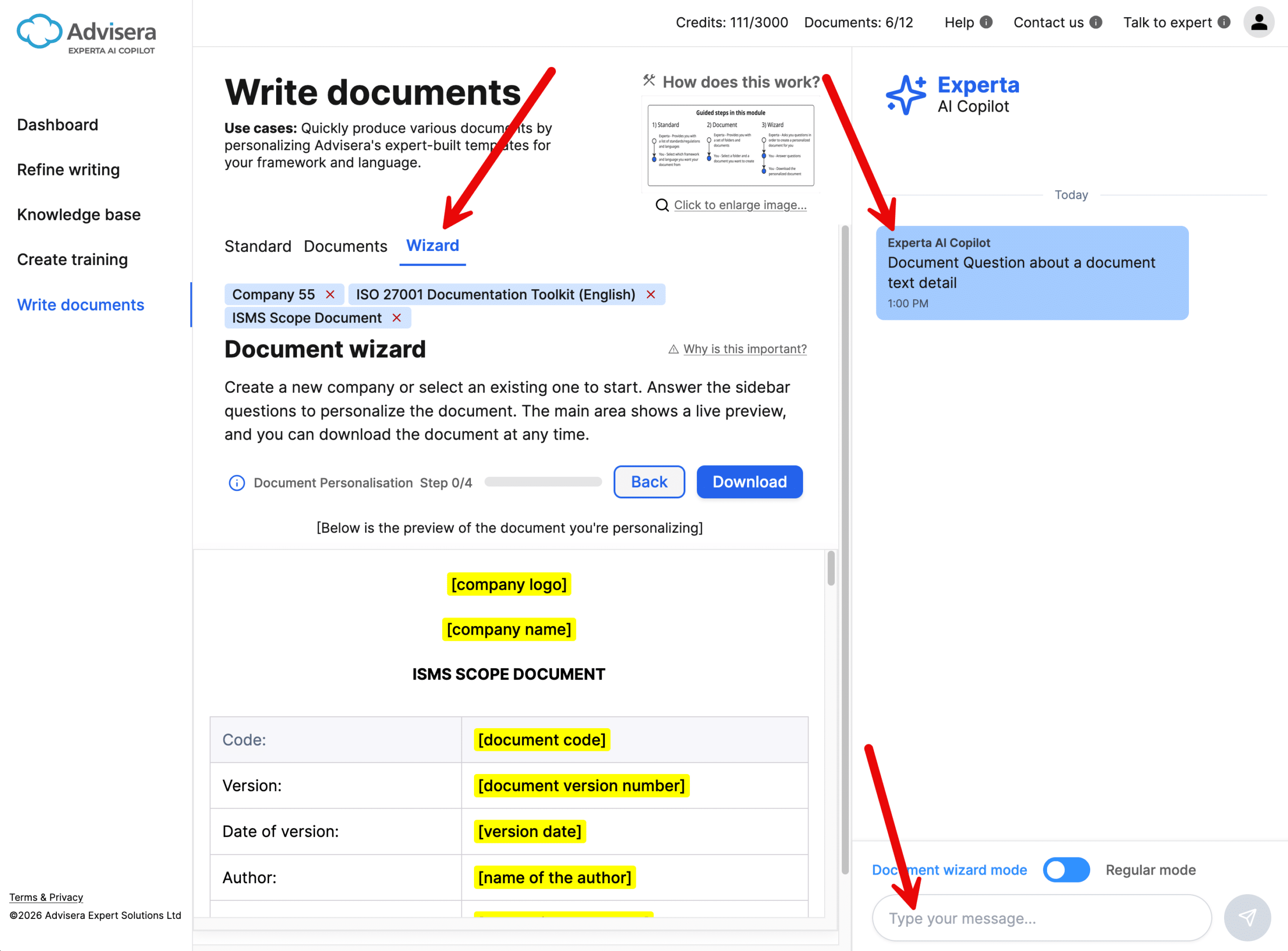
- Each question relates to a specific part of the document
- Your answers are automatically inserted into the document
You’ll see Experta’s message like:
👉 “Answer this wizard question”
Step 2: Complete the wizard
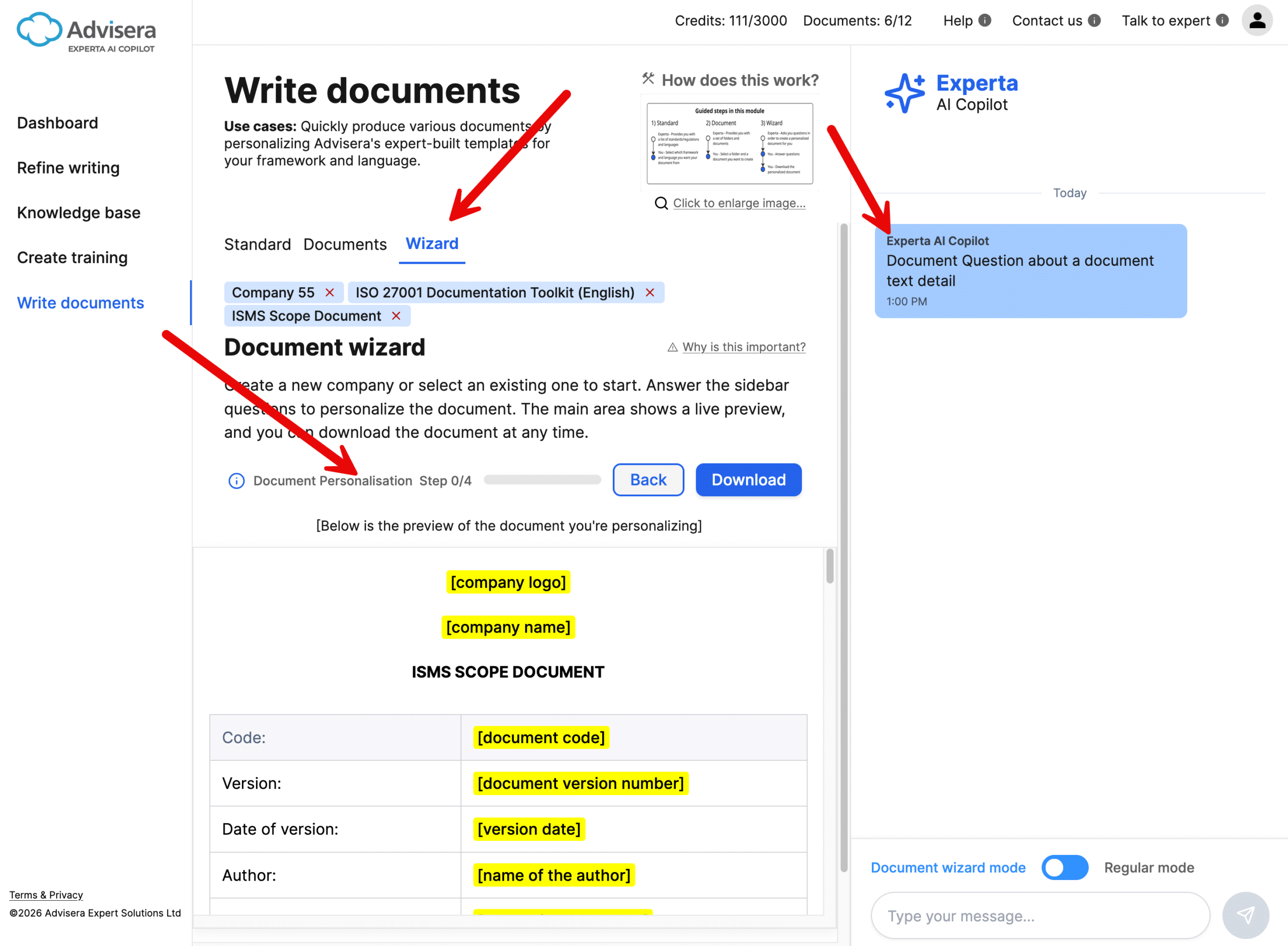
- A progress indicator shows how many questions remain
- Once all questions are answered, the document is fully personalized
Step 3: Download the document
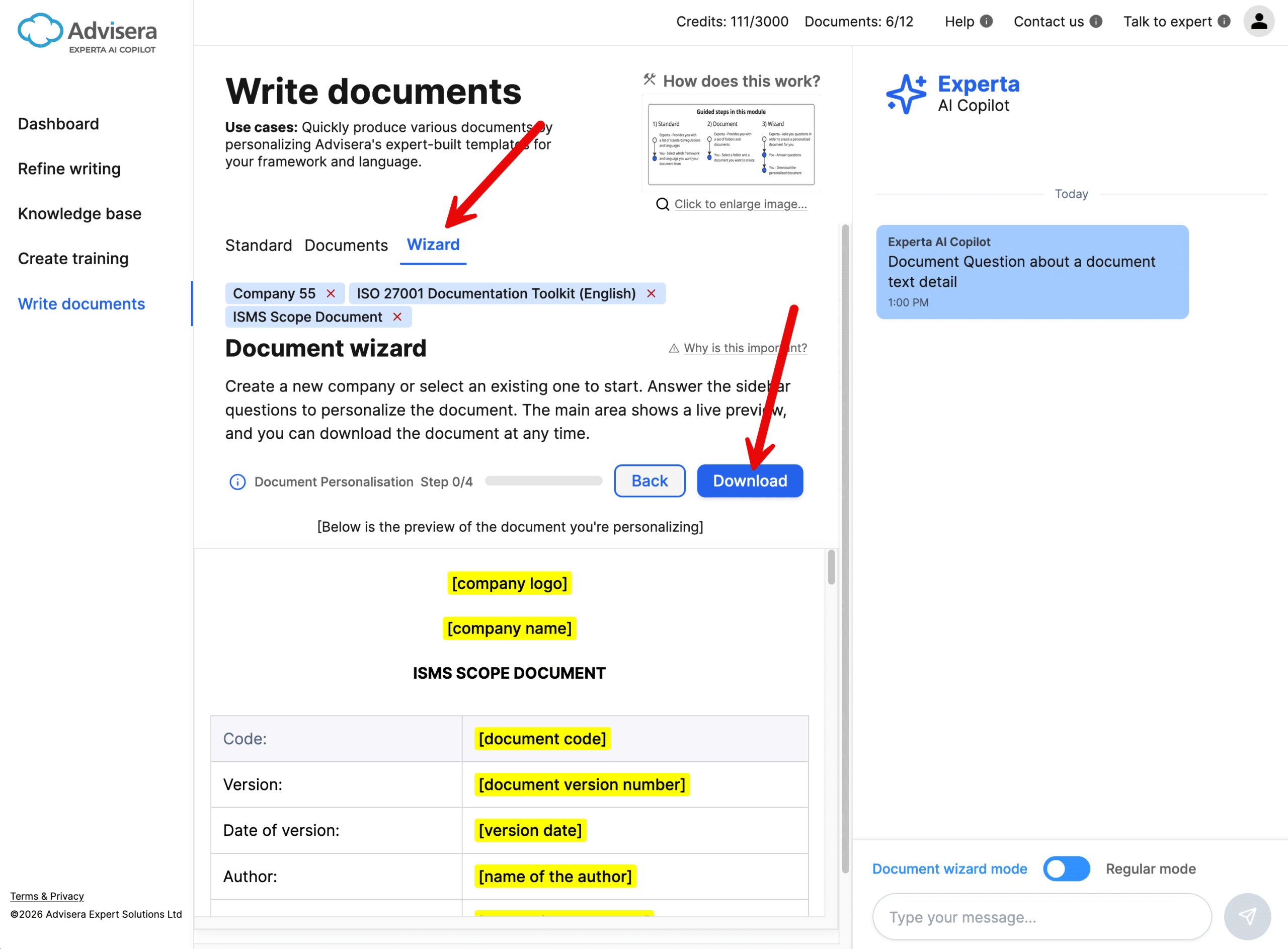
At any time, you can click the Download button:
- If the wizard is incomplete → you can still download, but the document may not be fully personalized
- If the wizard is complete → the document is fully tailored and ready to use
Chat sidebar: Document wizard mode vs Chatbot mode
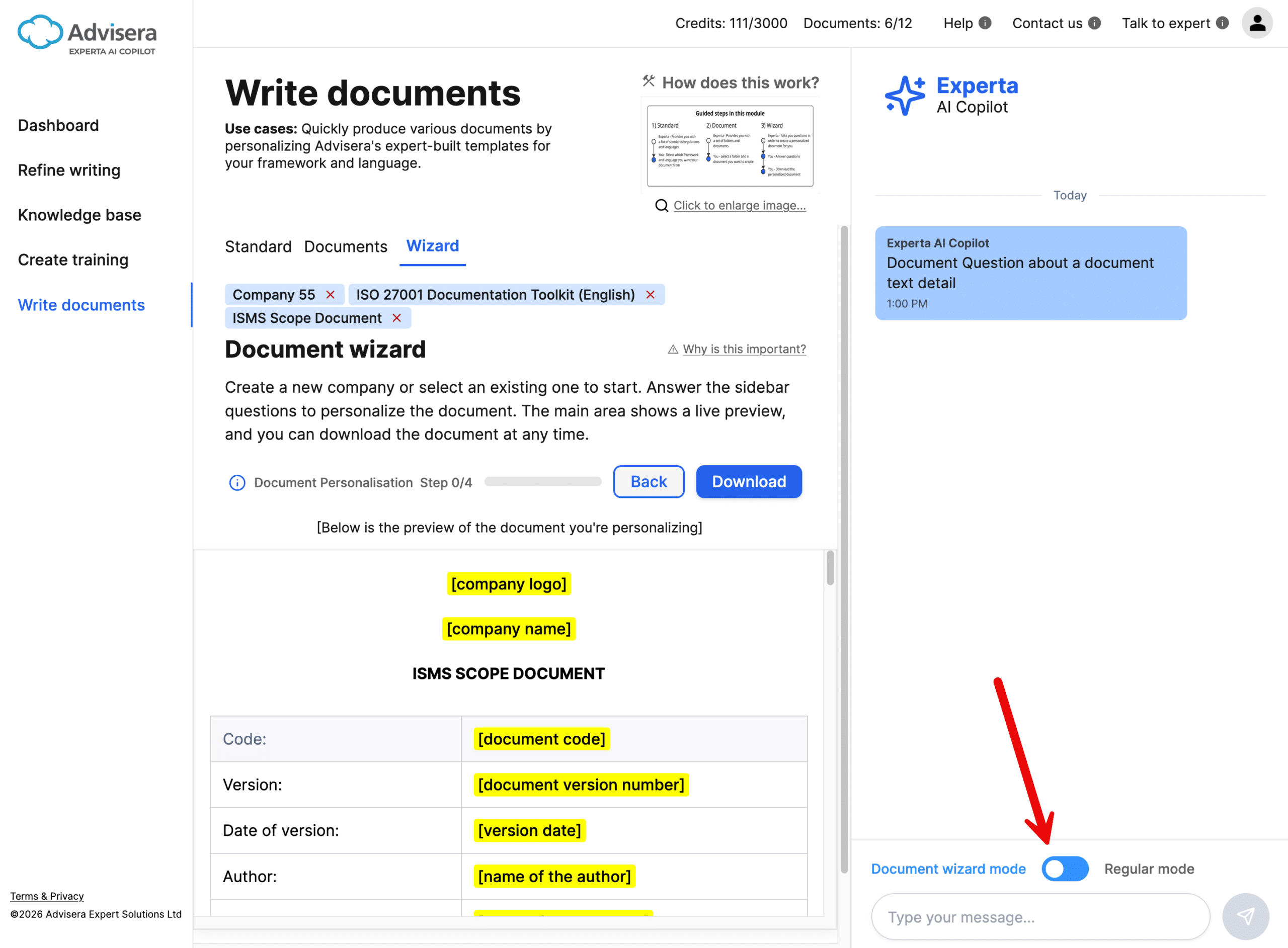
You can switch between two modes in the Chat sidebar:
Document wizard mode (default)
- Used for answering wizard questions
- Focused only on document personalization
- No distractions or unrelated messages
Chatbot mode
- Used for asking general questions
- Get explanations or guidance
👉 Use Wizard mode for completing the document, and Chatbot mode for asking any questions.
Tips for best results
- If you write multiple documents, then follow the sequence of folders
- Take a look at the document preview before using document credits
- Answer all wizard questions for full personalization
Frequently asked questions
1. Do I need to personalize every document?
No, but this is strongly recommended — templates are generic by default and should be adapted to your company.
2. Will I lose credits if I only preview a document?
No. Credits are used only after you confirm that you want to use the full version of the document.
3. Can I skip some wizard questions?
Yes, but the document may remain partially generic.
4. Can I download documents multiple times?
Yes. Already downloaded documents can be re-downloaded for the same company without using credits.