

What is the Chat sidebar?
The Chat sidebar is your AI copilot inside Experta.
It is the way for you to communicate with Experta — you can use it in every module, making it a central place for guidance, explanations, and expert insights.
What can you use it for?
You can use the Chat sidebar in several ways:
- Ask how a feature or module works
- Get explanations about standards (e.g., ISO 27001, ISO 9001)
- Learn best practices for compliance
- Explore topics you’re unfamiliar with
- Answer questions from the wizard
👉 Think of it as a combination of help center + expert advisor.
How to ask questions
There are two ways to interact with the Chat sidebar:
1. Click a suggested question
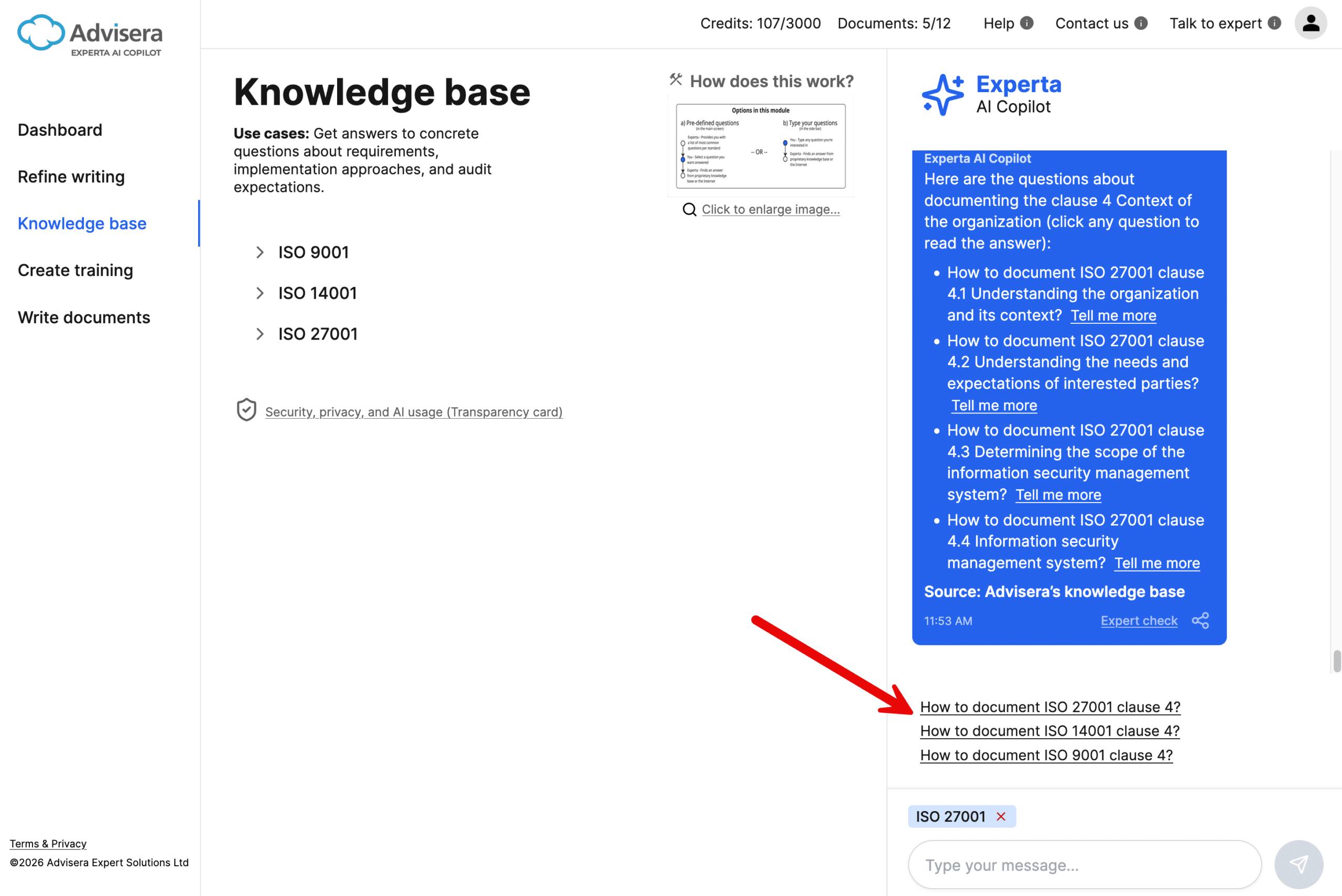
- Suggested questions appear below the input field
- Click any question to get an instant answer
👉 This is the fastest way to explore related topics.
2. Type your own question
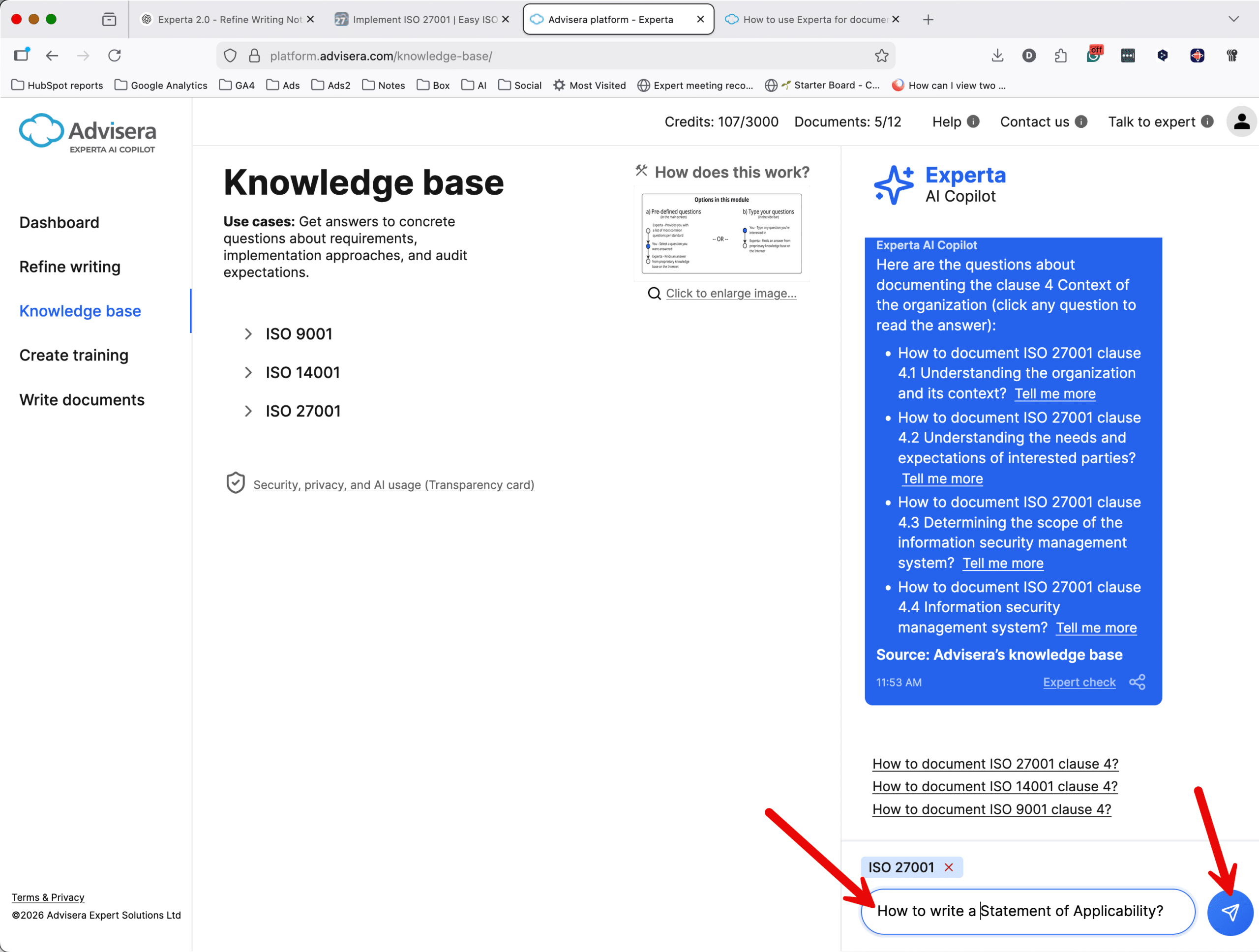
- Enter your question in the input field
- Click Send button
👉 Use this when you have a specific question or need.
How suggested questions work
- Each screen starts with a predefined set of suggested questions
- After you ask a question, new suggestions are generated based on your activity
- When you return to a screen, your last set of suggestions is preserved
👉 This helps you naturally explore related topics step by step.
How answers are generated
Experta follows a structured process to give you the most reliable answer:
1. Search within the current context
Experta first looks for answers related to the screen you are currently using.
2. Search the full knowledge base
If no answer is found, it searches the entire Advisera knowledge base.
3. Use external sources (if needed)
If the answer is still not found:
- A web search is performed
- Sources are displayed as links
👉 This ensures you always get an answer — even for very specific questions.
Understanding answer sources
Each answer will indicate a source:
- Advisera’s knowledge base → curated, expert-level content
- External links → used only when necessary
👉 This helps you evaluate the reliability of the information.
Context tag (framework selection)
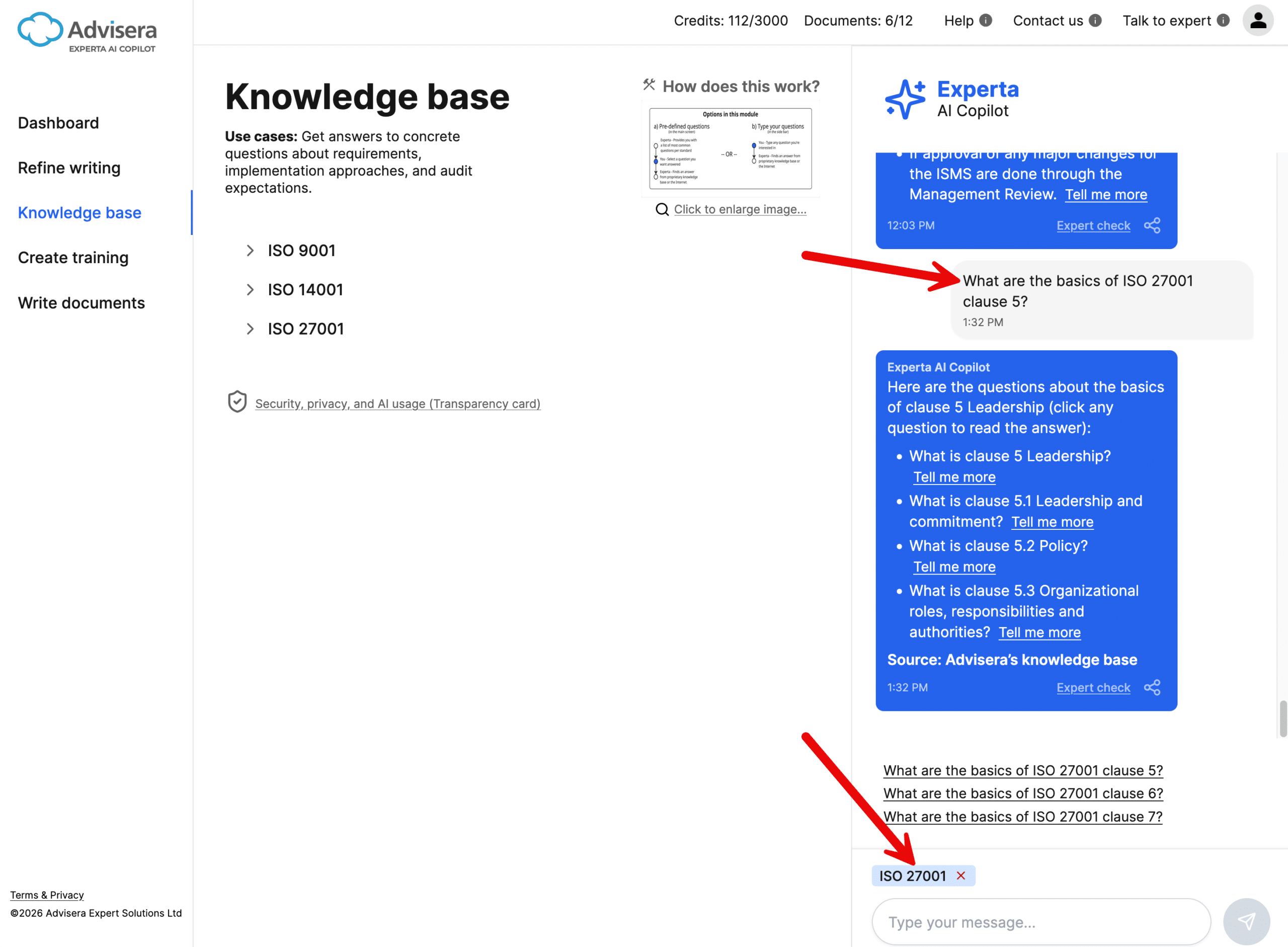
When you ask questions related to standards, Experta may automatically apply a context tag (e.g., ISO 27001).
What does this mean?
- Future answers are filtered for that specific framework
- You get more precise and relevant responses
How is it triggered?
The context tag appears when:
- You ask a question related to a specific standard
- You click a suggested question tied to a standard
- You select a question inside the Knowledge base for a particula standard
👉 This prevents confusion when working across multiple frameworks.
“Check answer” and sharing options
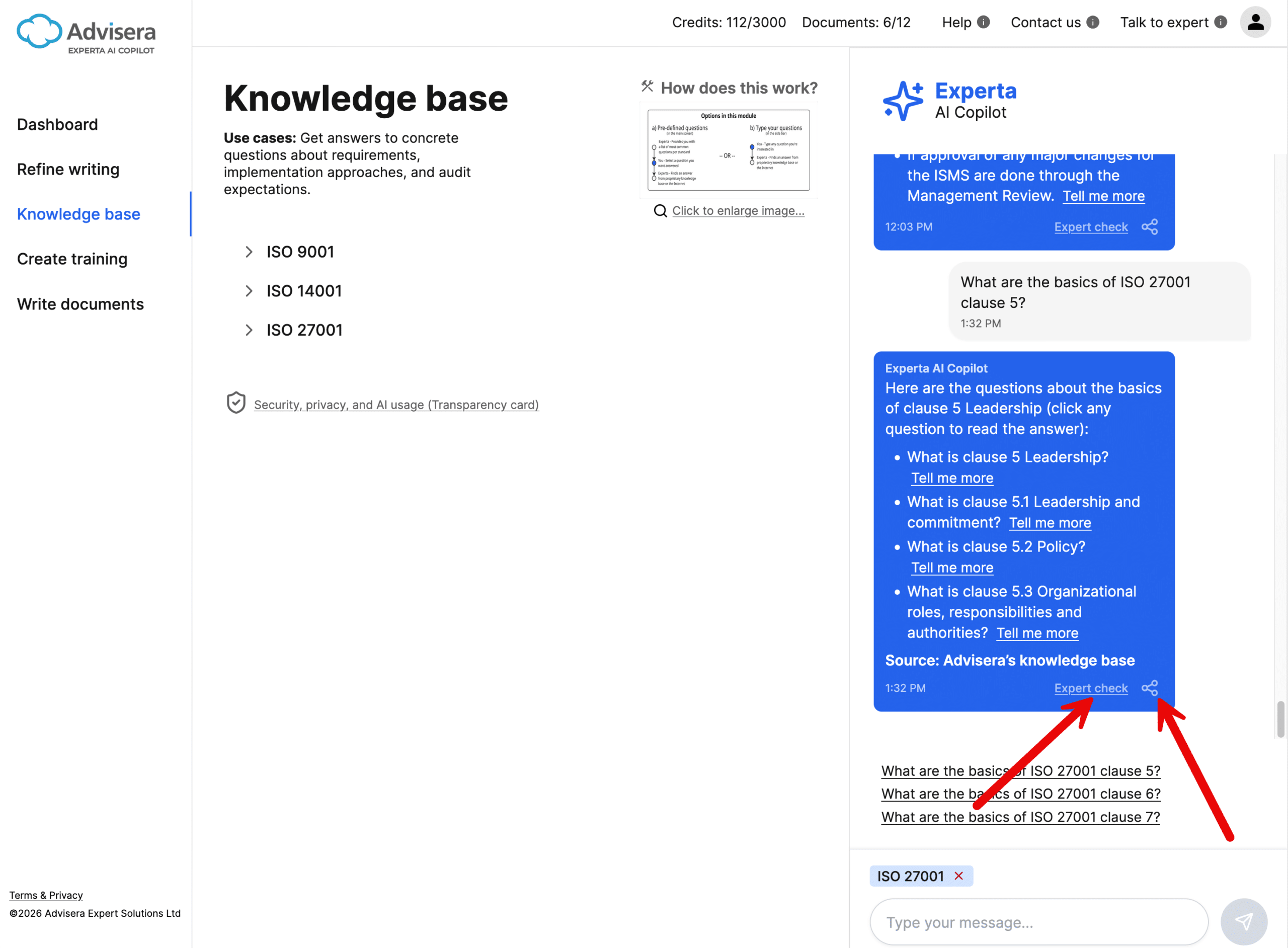
For answers coming from Experta’s knowledge base, you may see:
Check answer
- Lets you request verification of Experta’s answer by a human expert
- Useful if you want additional assurance
Share
- Allows you to share the answer with other people that are not logged into Experta
👉 These options are not shown for system messages or certain automated interactions.
Tips for best results
- Start with suggested questions if you’re unsure what to ask
- Ask specific questions for more precise answers
- Pay attention to the context tag when working with multiple standards
- Use follow-up questions to go deeper into a topic
Frequently asked questions
1. Can I trust the answers?
If the answers are provided from Advisera’s knowledge base, then yes. If the answer is from an external source, then you have to be careful, and try to verify its accuracy.
2. Why do suggested questions change?
They adapt to your previous questions to help you explore related topics more efficiently.
3. What happens if Experta doesn’t know the answer?
It automatically performs a web search and provides sources it used to answer the question.
4. Can I ask follow-up questions?
Yes. You can continue the conversation at any time to get deeper explanations.